📖 Study with BEE
Join a seminar — Find your facilitator's class and apply
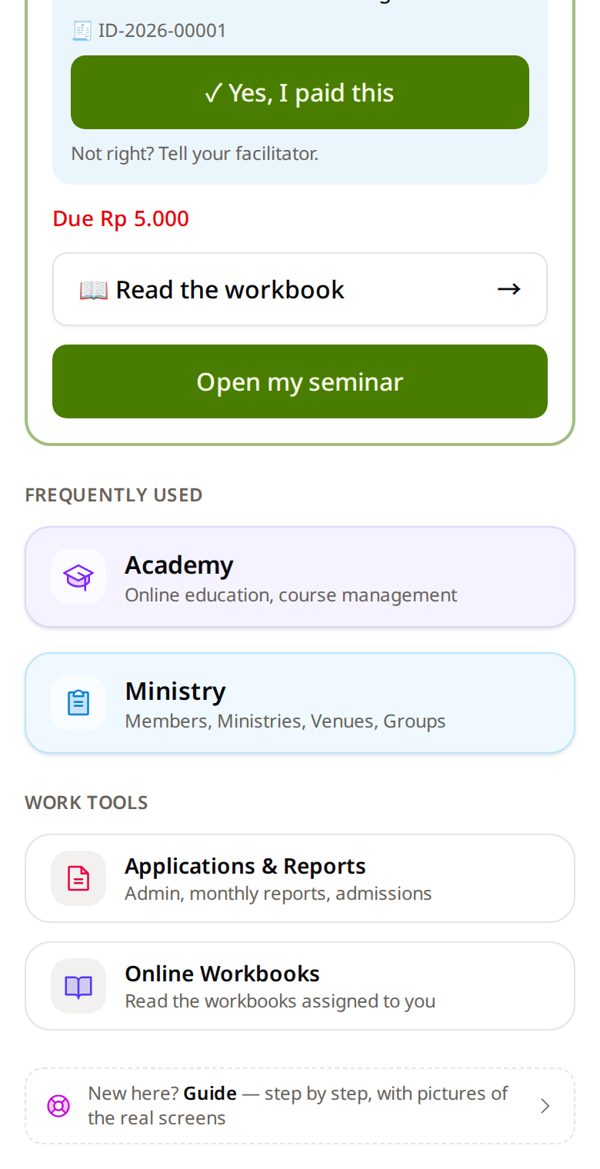
1. Tap Academy
On your home page.
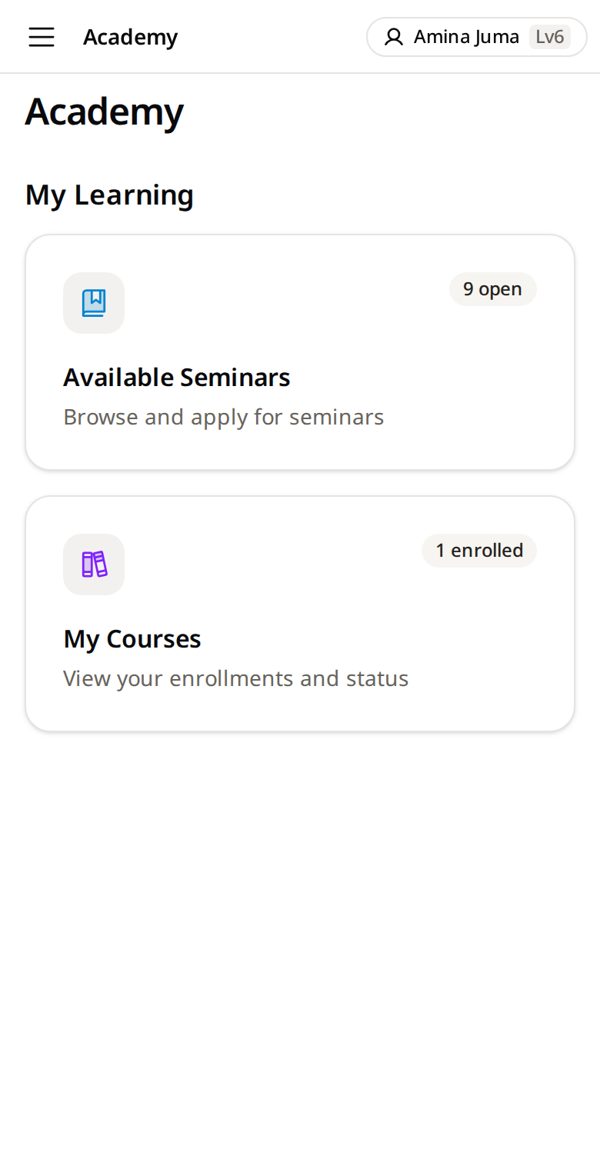
2. Tap Available Seminars
Seminars that are open for students.
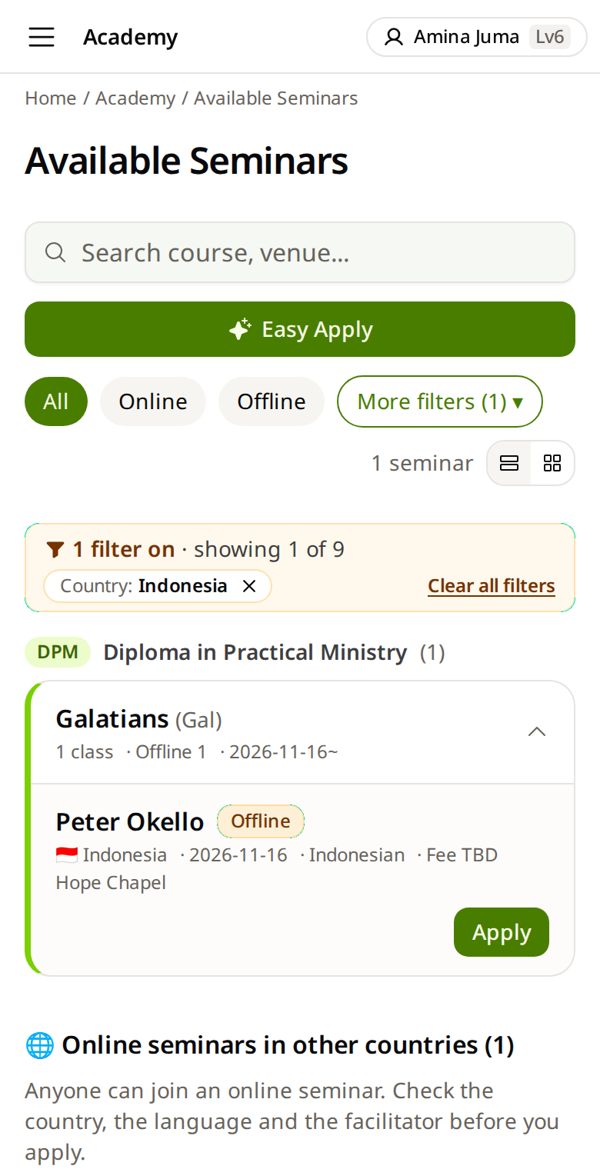
3. Tap Easy Apply
Three short questions find your class.
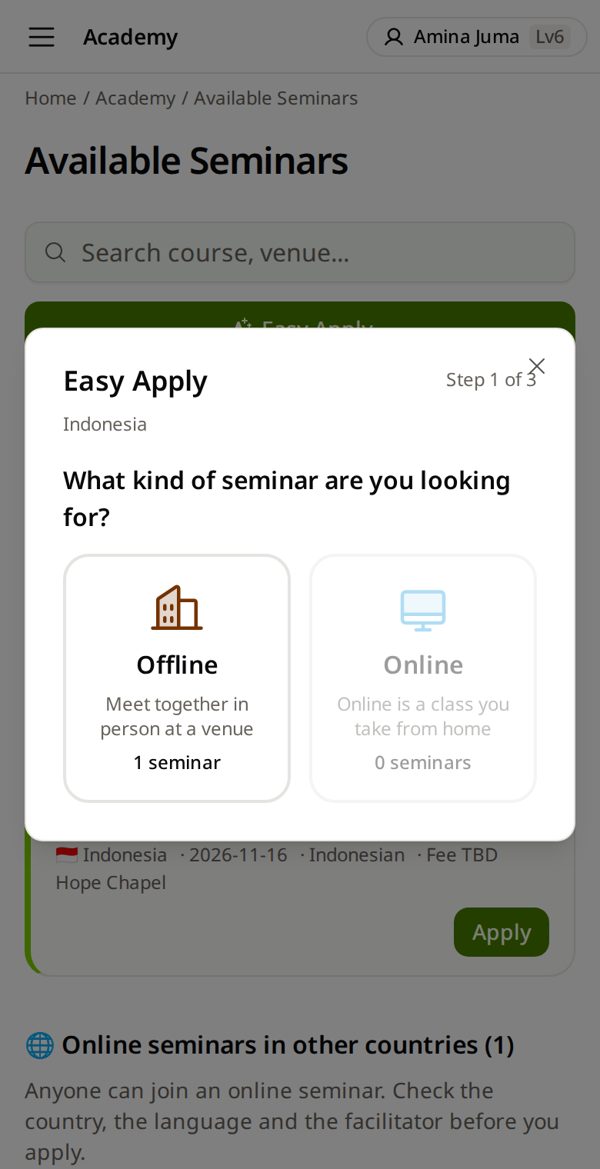
4. Meet in person? Tap Offline
Offline = you meet in one room. Online = you join from home. Not sure? Ask your facilitator. Wrong choice? Tap ‹ to go back.
5. Tap your course
The book your facilitator told you about.
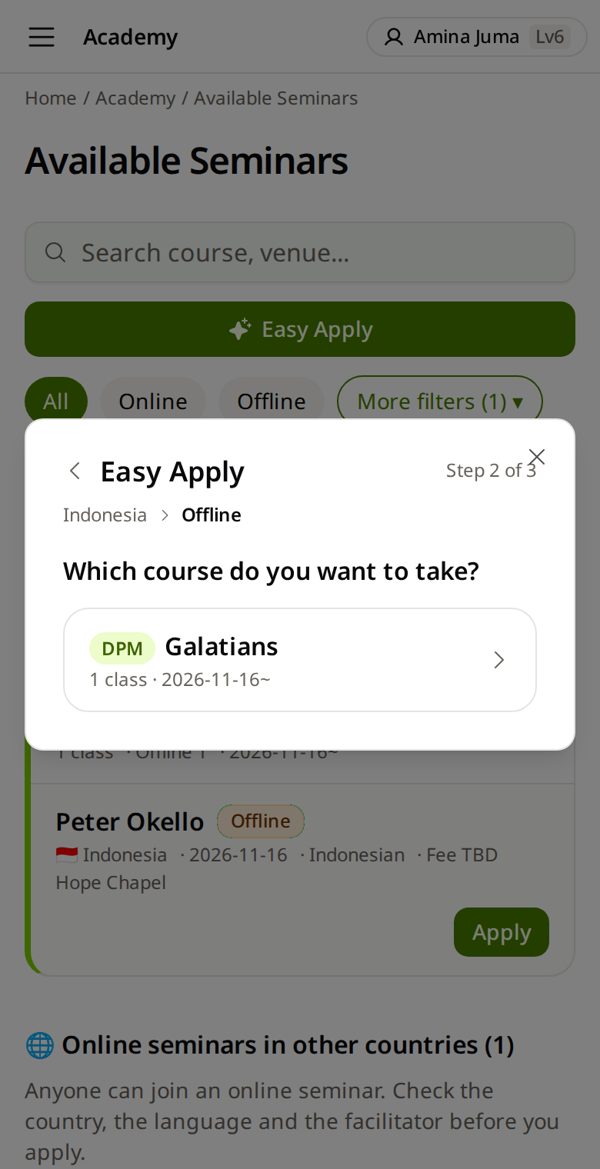
6. Find your facilitator → Apply
Check the date and place. Not sure which class? Ask your facilitator.
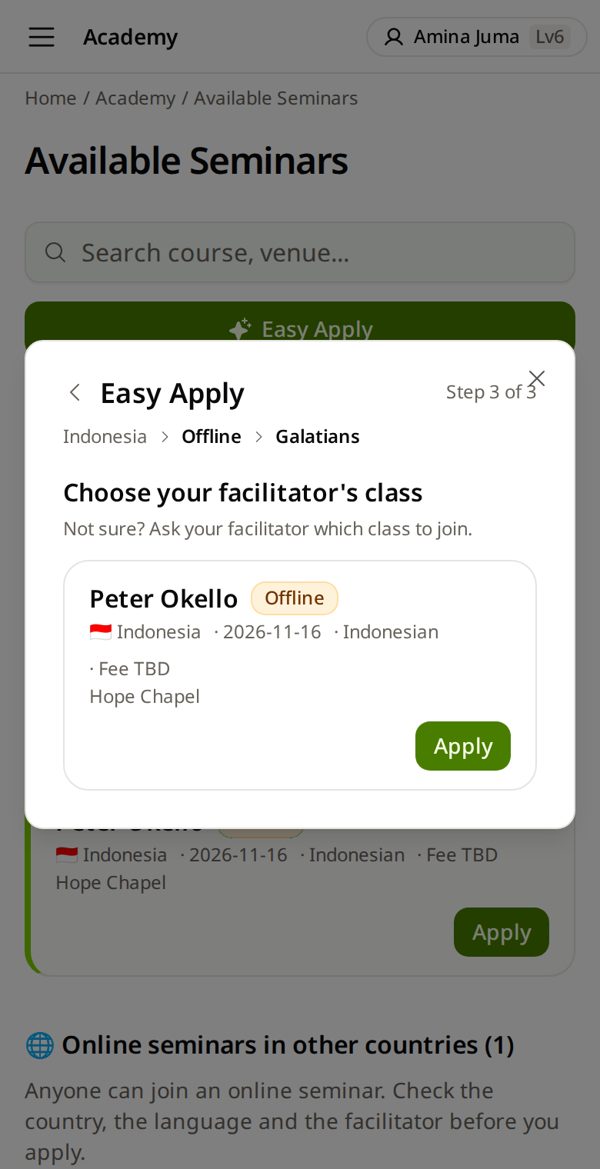
7. Check the fee → tap Apply again
Your application is sent only after this second tap.
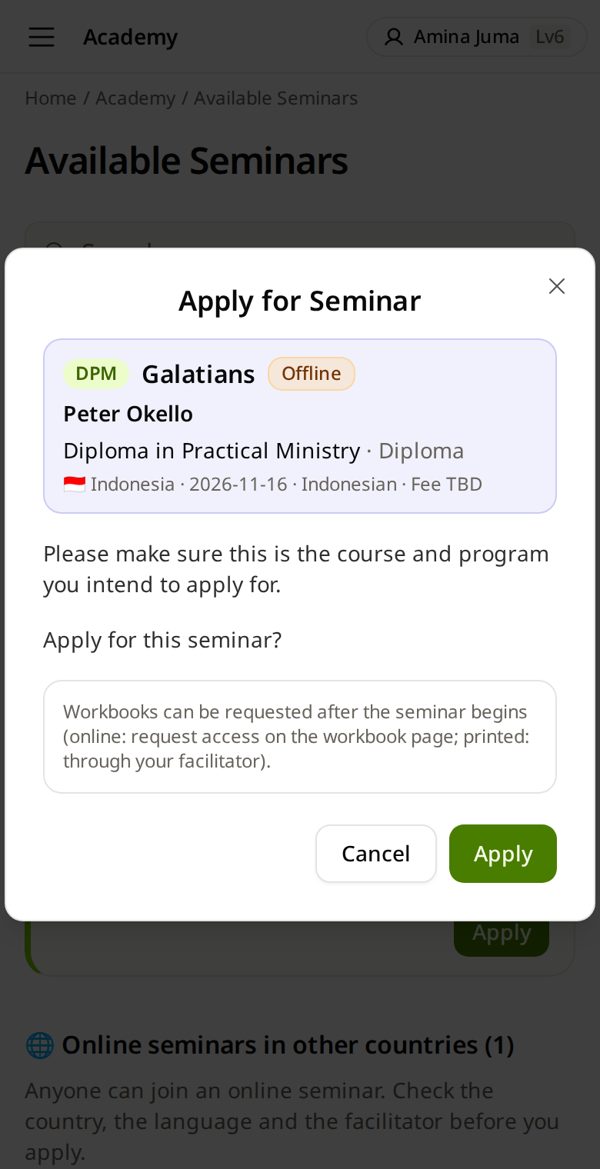
8. Wait for Approved
Academy → My Courses. It says Pending first. Your facilitator approves it.
Applied to the wrong one? While it is Pending: tap Cancel Application on its card.
Read the online workbook — Ask for your book and start studying
1. Tap Online Workbooks
2. Find your book
Your seminar's book is at the top, under My books. Or type its name. 🔒 = you still need access.
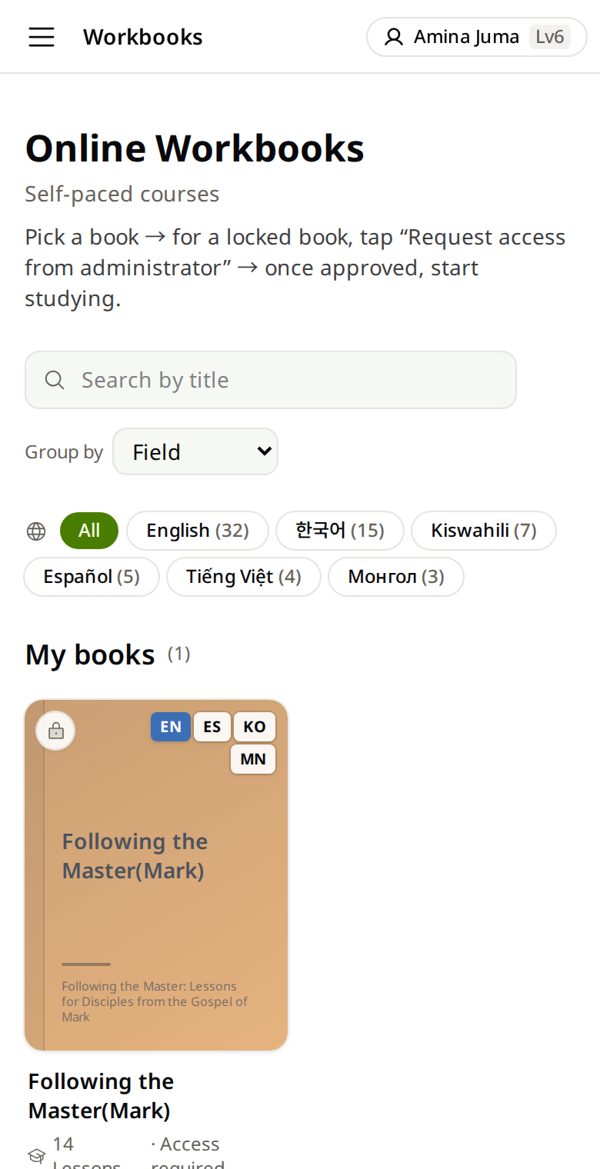
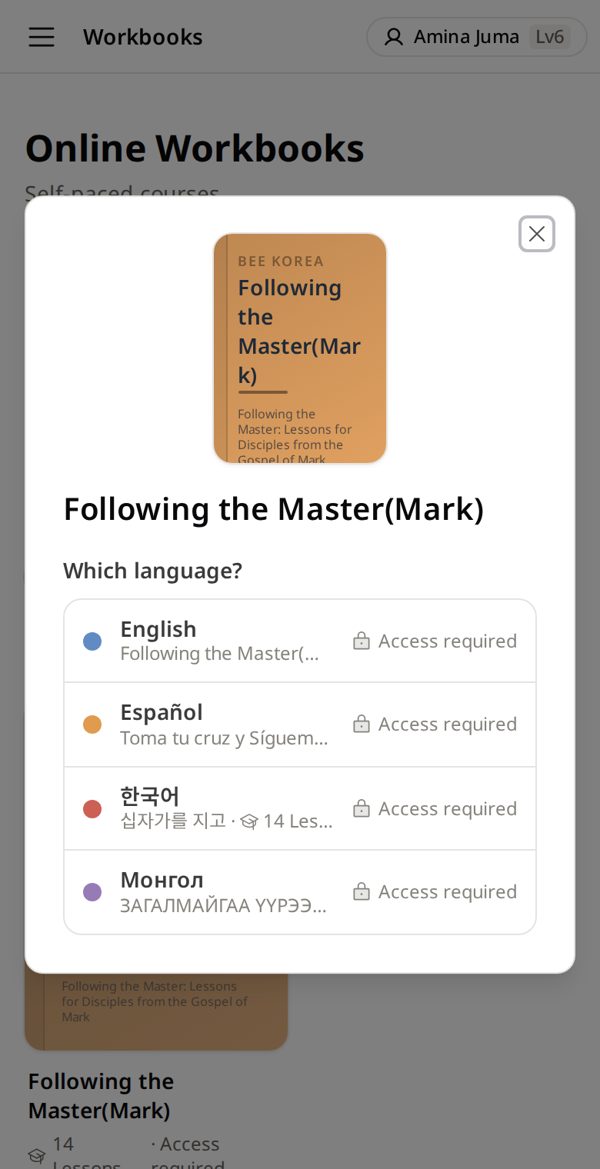
3. Choose your language
Pick the language you read best.
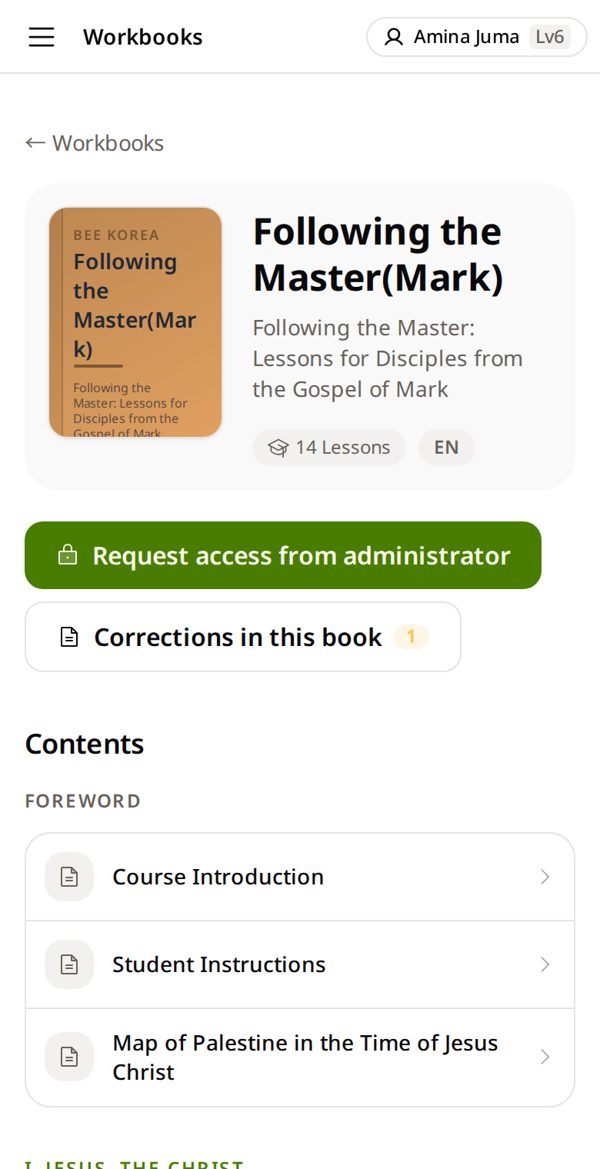
4. Tap Request access from administrator
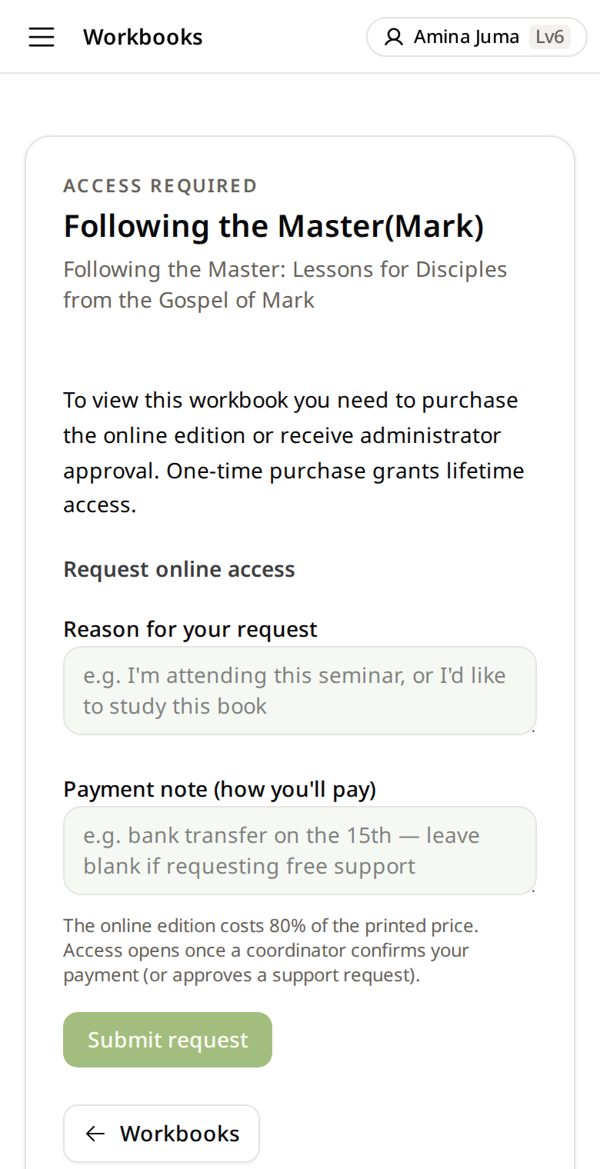
5. Write why and how you pay → Submit request
e.g. “I am in the Romans seminar” · “cash to my facilitator”.
6. Wait for Start Studying
Your facilitator or BEE opens it after your payment. Your answers are saved in your account.
Paid but still pending? Tell your facilitator.
Following the Master ✳
⏳ Request pending↓
Start Studying
My courses, fees and grades — See where you are
1. Academy → My Courses
Every seminar you are in.
2. Read your status and fee
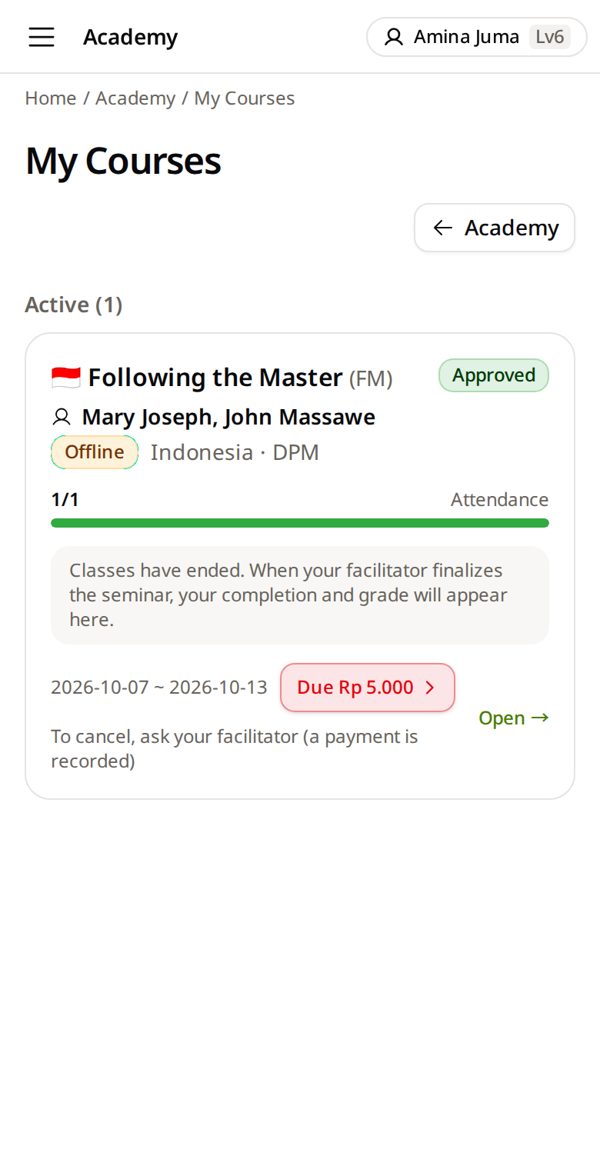
Approved = you are in. Red Due = money still to pay. Tap the card to open it.
3. Everything is in one room
Workbook · Exams · Grades & attendance · Fees. Your grade comes when the seminar is finished and confirmed.
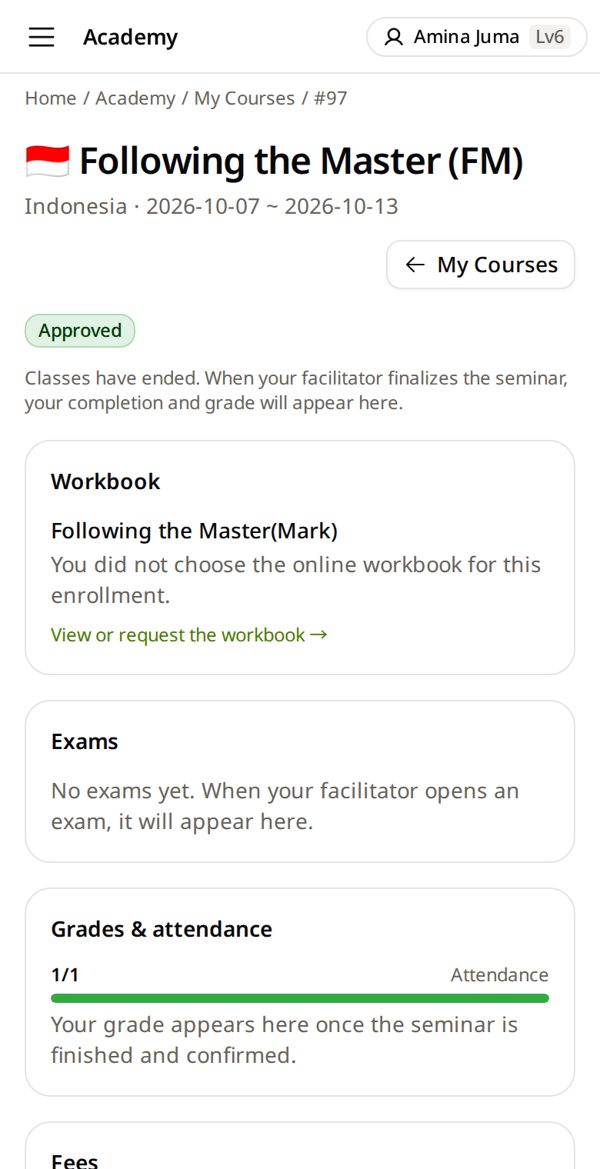
4. Tap the fee
Scroll down to Fees. Your fee history opens.
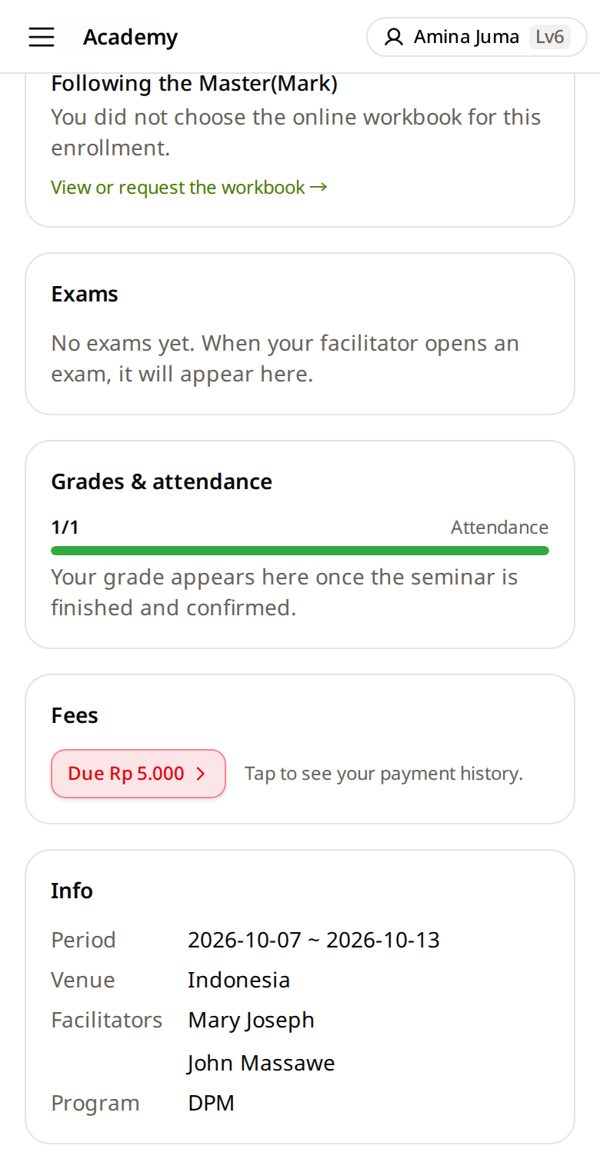
5. Check the amount → Yes, I paid this
Each payment has a receipt number 🧾 — tapping means it reached your facilitator. Quicker: the same button is on your home page.
Wrong amount? Do not tap. Tell your facilitator before the seminar ends.
Amina Juma — Fee history ✳
Charge · KSh 500.002026-10-26Payment · KSh 500.00 · Cash🧾 KE-2026-00012Yes, I paid this
Take an exam — When your facilitator opens it
1. Open your seminar → Exams
Academy → My Courses → tap your seminar. Or ☰ (computer: left menu) → My exams. Nothing there? Wait — your facilitator has not started it yet.
2. Tap Start exam
The clock starts. Your answers save by themselves.
Start only when you have time and internet. The clock does not stop.
Exams ✳
Unit 1 exam20 questions · Time limit 20 minStart exam3. Answer every question → Submit
Submit stays at the top, by the clock. Tap it, then OK — after that you cannot change answers.
Stay on this page — if you leave it, the exam records it. Late? You can still submit, but you lose 1 point each minute.
Exam in progress ✳
19:40 left
Submit1. Who wrote the Gospel of Mark?○ Peter ● John Mark ○ Luke2. …
🗑Cancel a wrong application
While it is Pending: My Courses → its card → Cancel Application. You can apply again.
🔎Find my seminar again
☰ (computer: left menu) → My Courses.
📱Study on another phone
Sign in the same way. Your answers and underlines are in your account.
🌐Workbook in my language
On the cover, pick your language. If it is not there, the book is not in that language yet.
📚When to ask for the book
Usually after your seminar says Approved. Reading a book on your own? You can ask too — the office tells you how to pay.
🙋Who to ask
Ask your facilitator first. They ask the coordinator — the BEE person for your country.
💻Using a computer?
- Button and box names are the same as in the pictures.
- The menu is always open on the left — where the guide says ☰, use the left menu.
- Lists show as wide tables. Keep this guide open on your phone beside you.
📜Get a certificate or transcript
- Tap your name at the top → My profile (name, phone, country) → Certificate of Enrollment or Official Transcript.
- Tap Request Approval. Your regional director approves it — you get an email.
- Then open it again and print or save it — within 3 days, up to 5 times.
I can't find my seminar
It may not be open for applications yet — ask your facilitator, and do not apply to a different one. An online class in another country? Scroll to Online seminars in other countries at the bottom. Other countries or languages: More filters.
It says “Applied — waiting for approval”
That is right — you applied. Your facilitator approves it.
I paid, but my book is still locked
Tell your facilitator. The book opens after your payment is checked.
There is no “Start exam” button
You are not approved in that seminar yet, or the exam is not open. Ask your facilitator.
My grade is empty
Normal until the seminar is finalized.
I paid in cash, but it still says “Due”
Your facilitator must write the payment in. Ask them — then a receipt 🧾 appears.
The internet stopped during my exam
Do not close the page. Your answers stay on this phone. When the internet is back, tap Submit again.