🌍 Your country's seminars
Add a seminar — A seminar has started or is planned
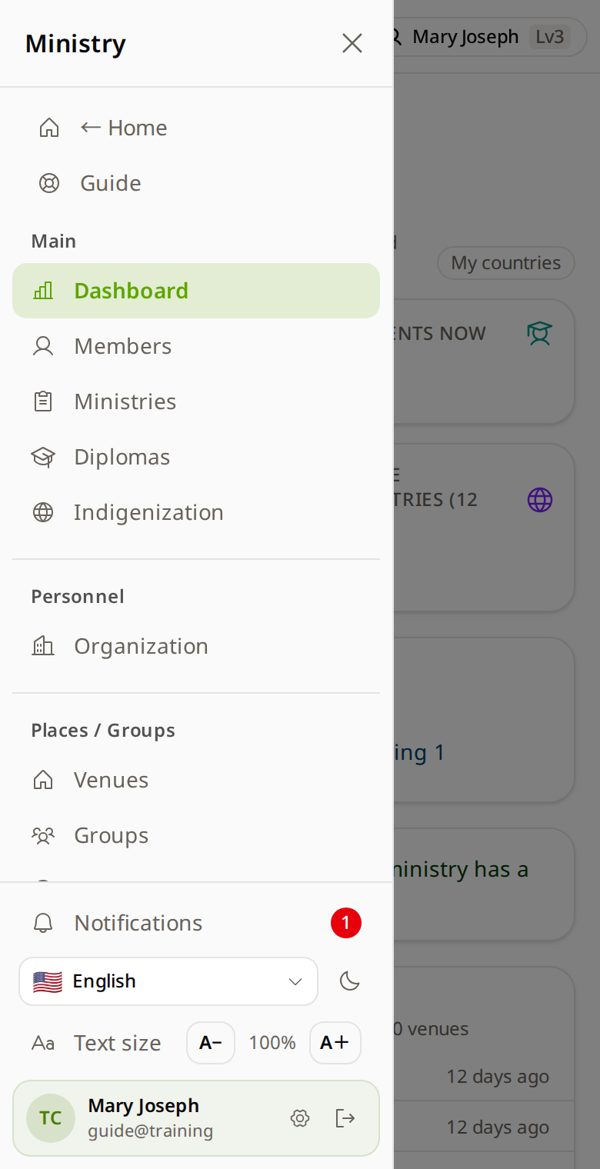
1. Open Ministries
Home → Ministry tile → ☰ (top left; computer: left menu) → Ministries.
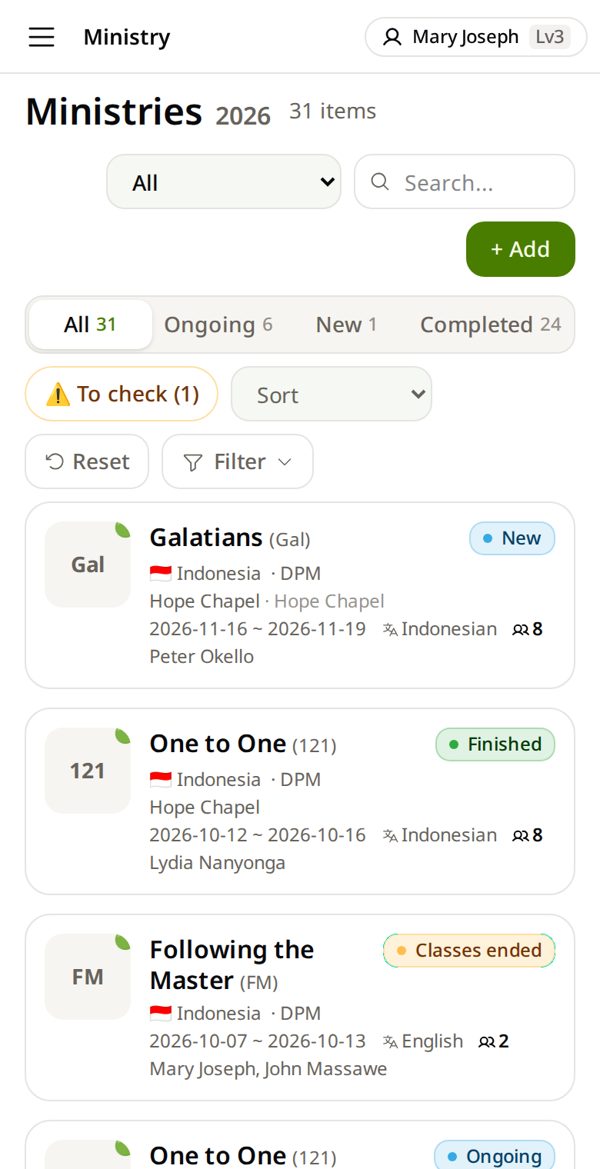
2. Look first → + Add
Is it already in the list? Then use “Update a seminar” instead.
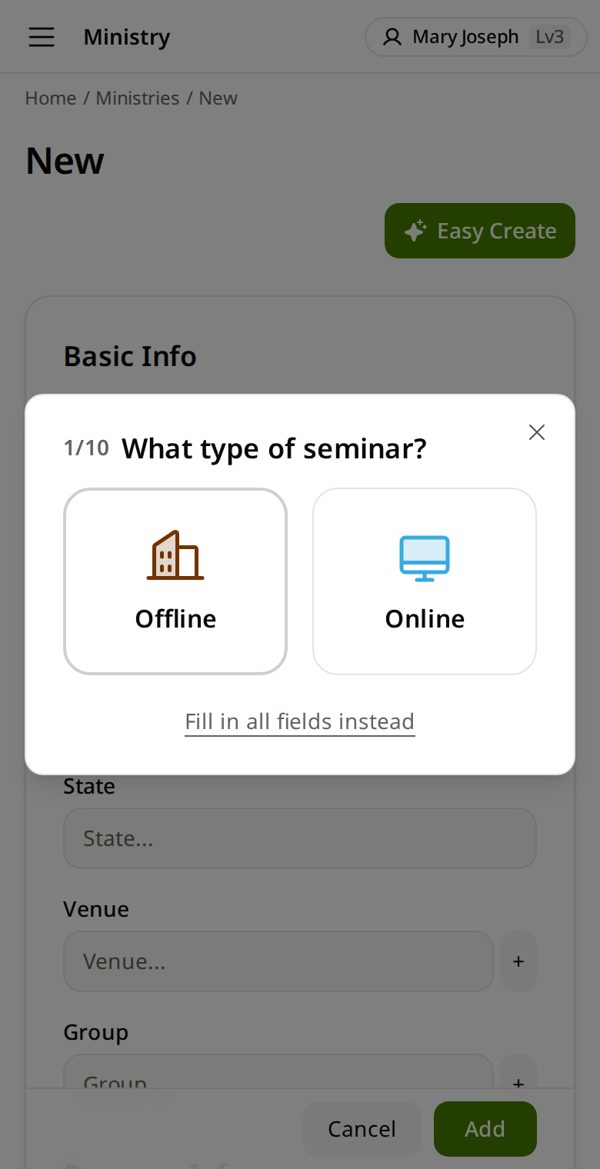
3. Tap Fill in all fields instead
Only the full form has the student count and the facilitators.
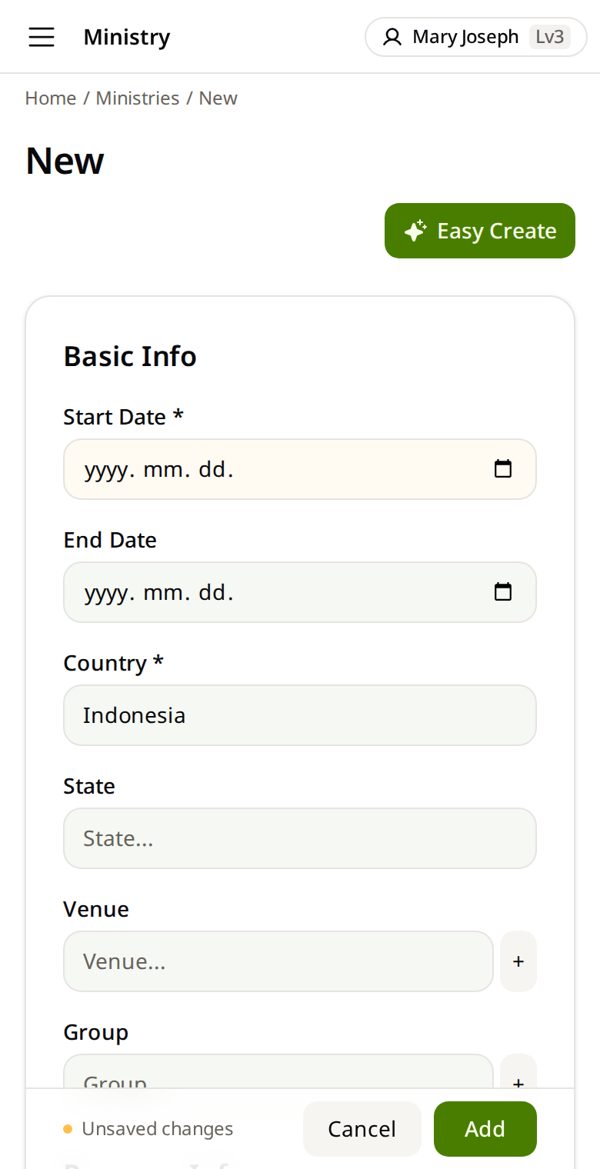
4. Dates · Country · Venue
Pick Start and End Date from the calendar. India: also State. Venue not in the list? Tap +.
Read the date again: day, month, year.
5. Program → Course → Language → Seminar Type
Usually DPM. Online seminar (“*” in your old E-75)? Seminar Type = Online. Otherwise Offline.
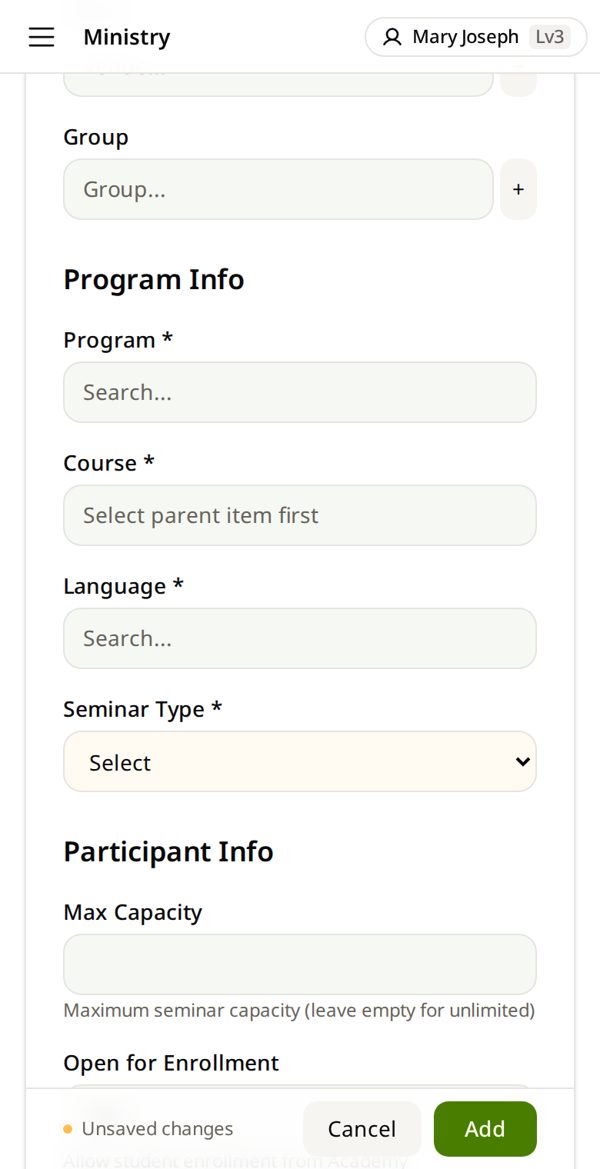
6. Type the number of students
Enrolled = how many started. Already finished? Type Completed too. Still going? Leave Completed empty.
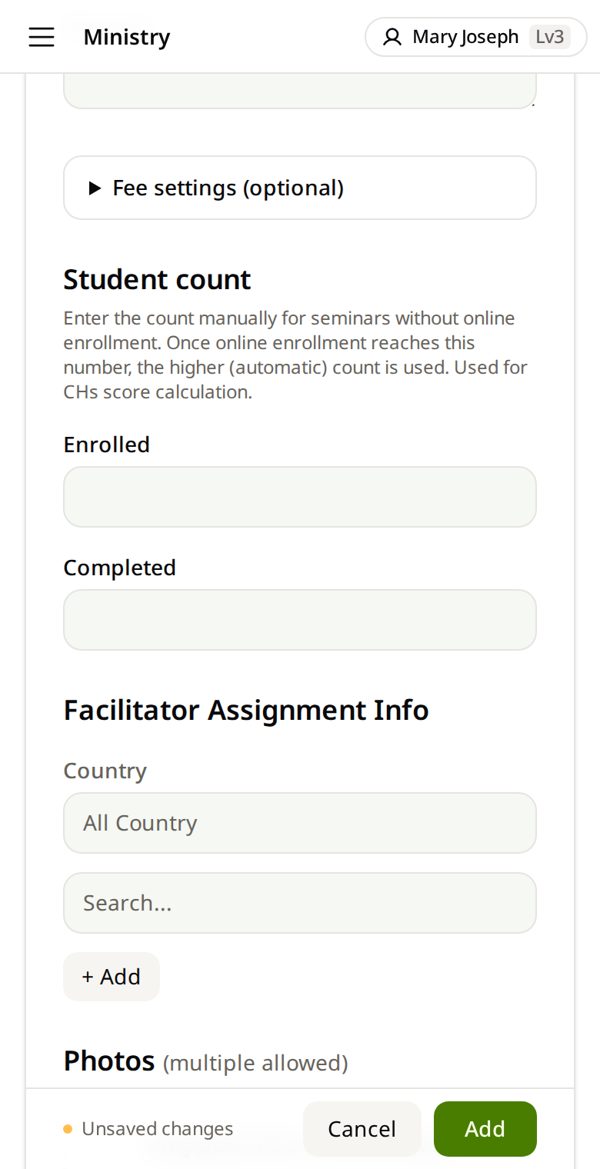
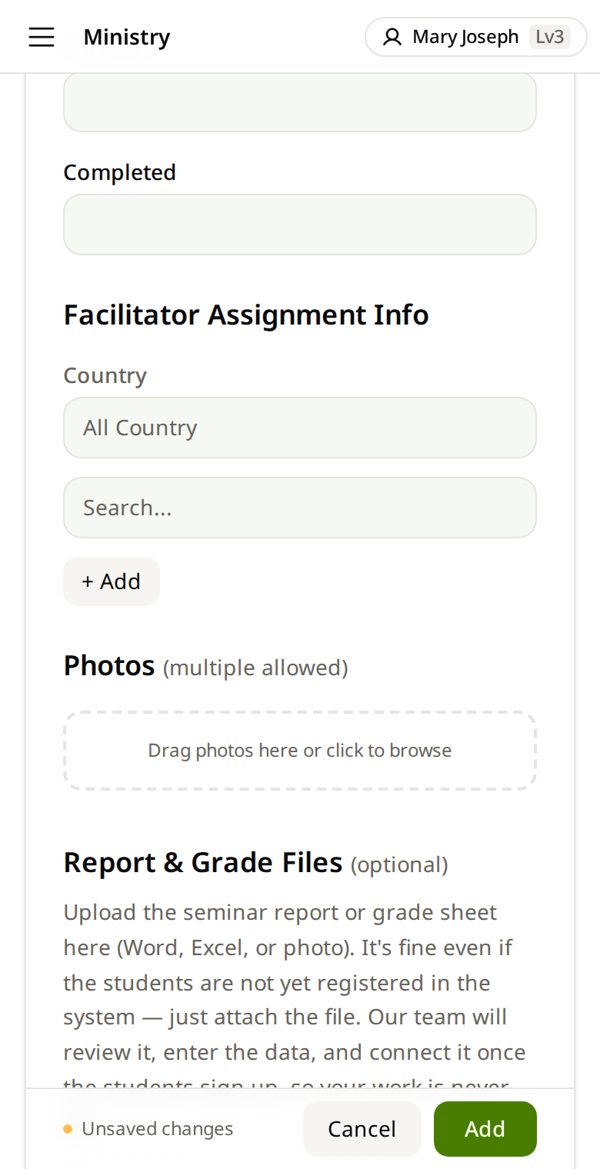
7. Add every facilitator → Save
Search, pick, tap + Add. Not there? See “A new facilitator”.
No file needed — do not upload your old E-75.
A new facilitator — Someone who leads a seminar is not in the system yet
1. Open Members
Home → Ministry tile → ☰ (top left; computer: left menu) → Members.
2. Search the name first
Search by name, phone or email. Already here? Use that person — do not add them again.
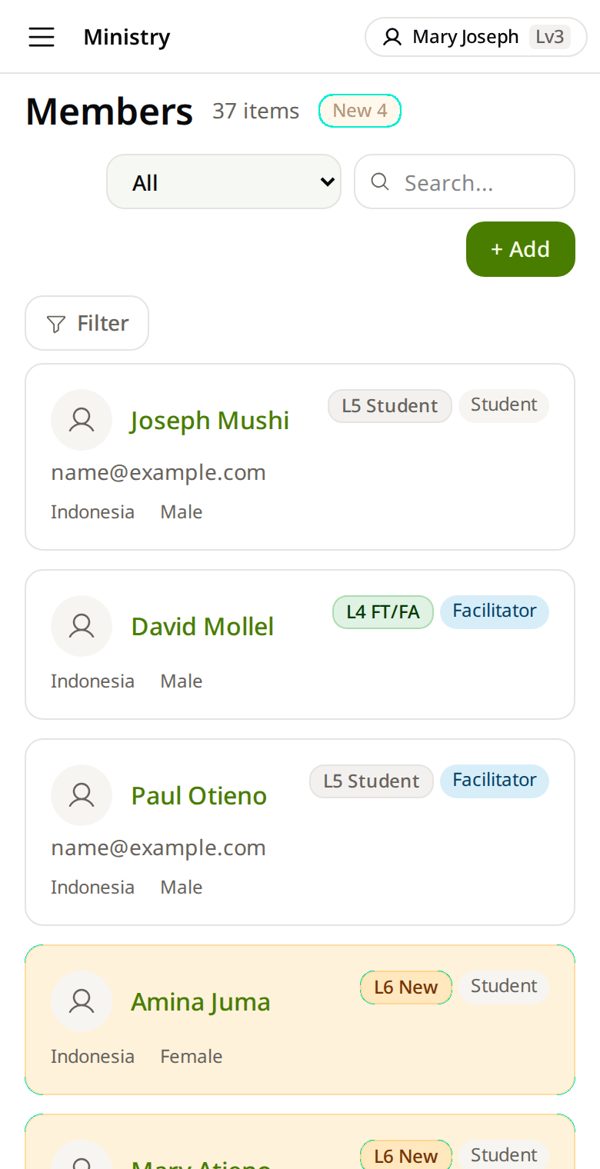
3. Not found? Tap + Add
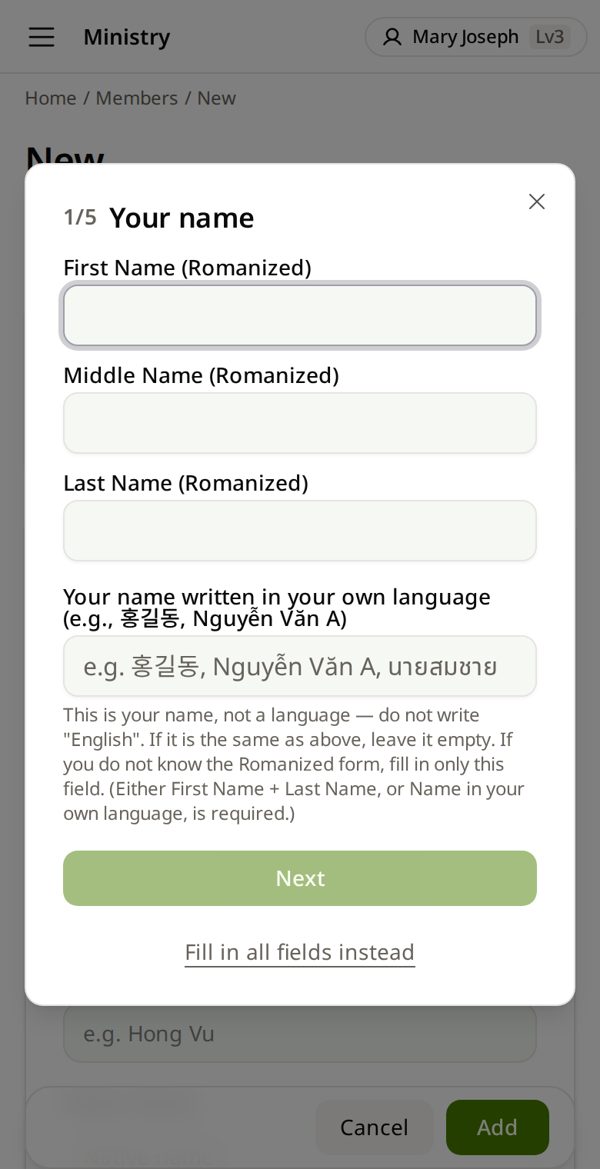
A short form opens — five small screens.
4. Name in English letters → Next
Then gender, birth date, country, phone — Next each time.
Country of Residence starts as your own country — change it to where they live.
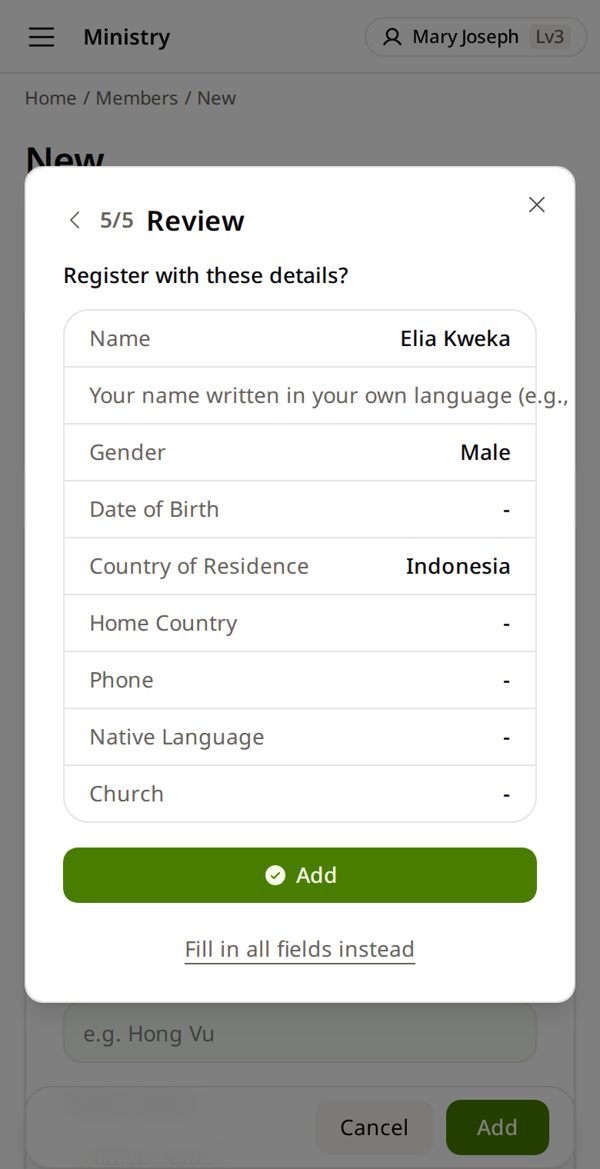
5. Check → Add
They start as a guest (Level 6). A birth date helps HQ catch the same person added twice.
6. Now put them on the seminar
Ministries → the seminar → Edit → search the name → + Add → save at the bottom.
Update a seminar — Dates, students or facilitators changed
1. Open Ministries
Home → Ministry tile → ☰ (top left; computer: left menu) → Ministries.
2. Find it in Ministries and tap it
Search, or Filter by country and year. Then tap the seminar.
3. Tap Edit
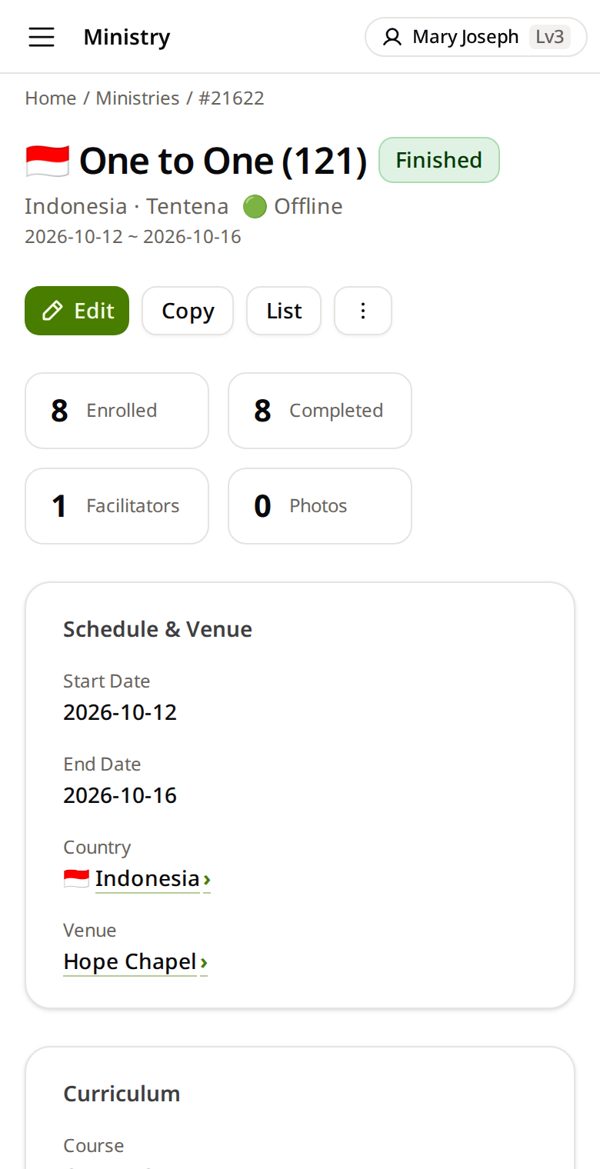
4. Change only what changed → Save
Change only what changed. A new End Date can change the year it counts in.
Never delete a seminar — it is the record. Write what happened in Remarks.
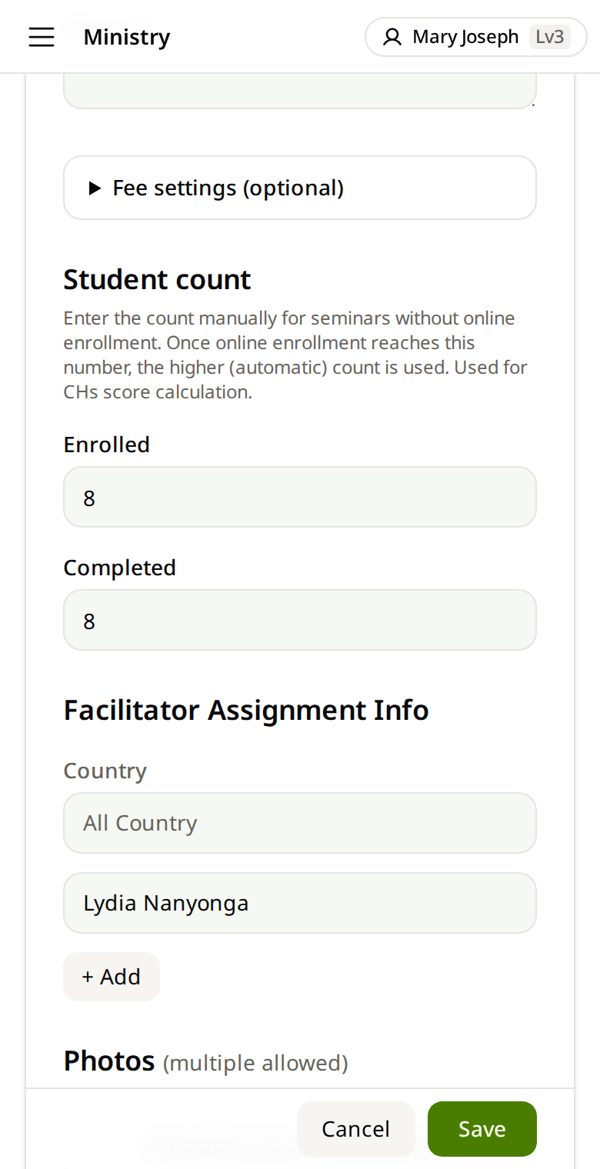
Close a finished seminar — How many completed
1. Open Ministries
Home → Ministry tile → ☰ (top left; computer: left menu) → Ministries.
2. Find it in Ministries and tap it
Search, or Filter by country and year. Then tap the seminar.
3. Tap Edit
The status follows the dates by itself — you do not set it.
4. Type Completed → Save
Check the End Date too. An empty Completed reads as “nobody completed”.
Find and check with filters — Is everything there — and right?
1. Open Ministries
Home → Ministry tile → ☰ (top left; computer: left menu) → Ministries.
2. Tap Filter → choose what to see
Country: one country at a time. Facilitator: type a name to see that person's seminars. Year = the year the seminar ended; All = every year.
Back to everything: Reset.
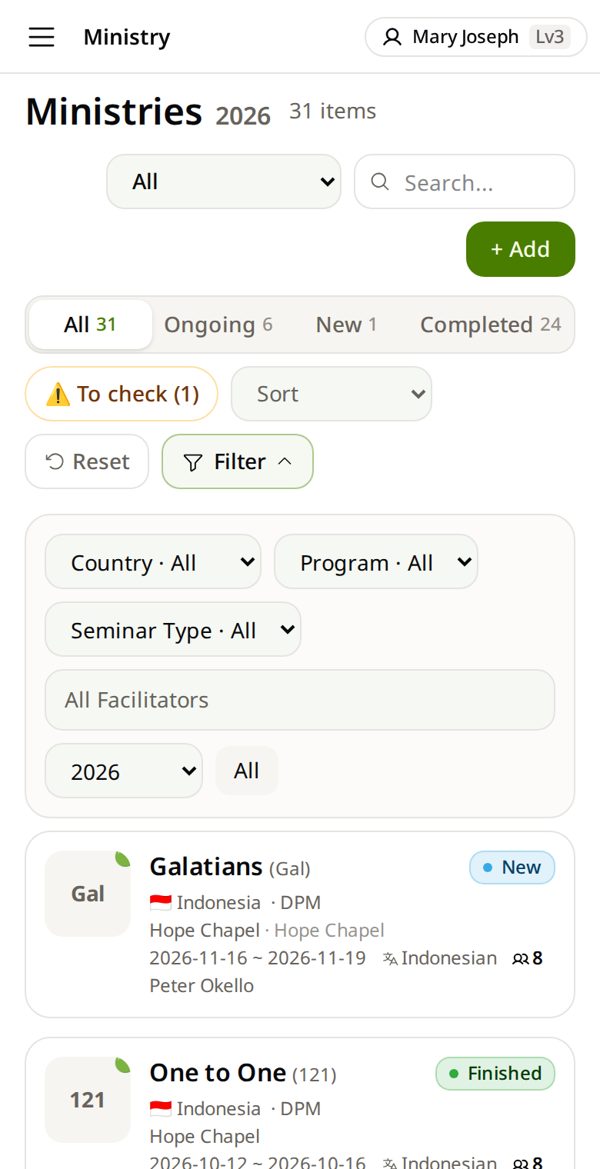
3. Read the numbers
The tabs count for you: Ongoing, New, Completed. To check = ended, but no student count yet or students still waiting to be finalized.
Month-end check — Find what is still missing
1. Open Ministries
Home → Ministry tile → ☰ (top left; computer: left menu) → Ministries.
2. Tap To close
It lists the seminars that ended but have no Completed number. No button? Nothing is missing.
3. Open each one → fill Completed
How: “Close a finished seminar”. After Save, it leaves the list.
Ongoing with no end date stays Ongoing forever — ask the facilitator for the end date.
Monthly report (B-75) — Prayer requests and other activities
1. Applications → Write
Home tile Applications & Reports. “Monthly report for … — not submitted yet” is at the top.
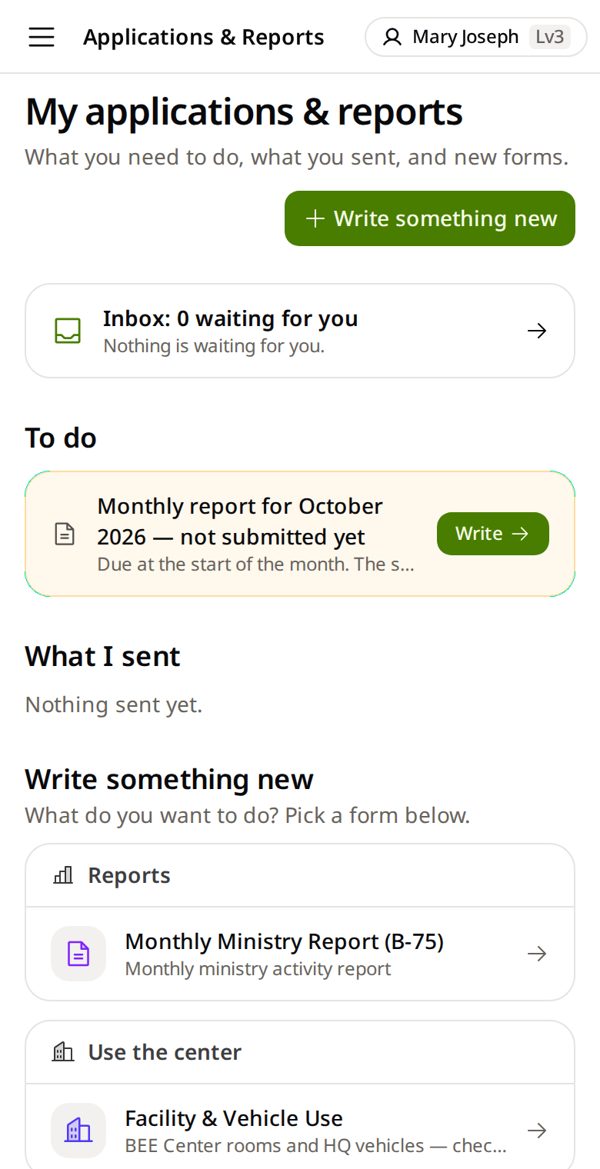
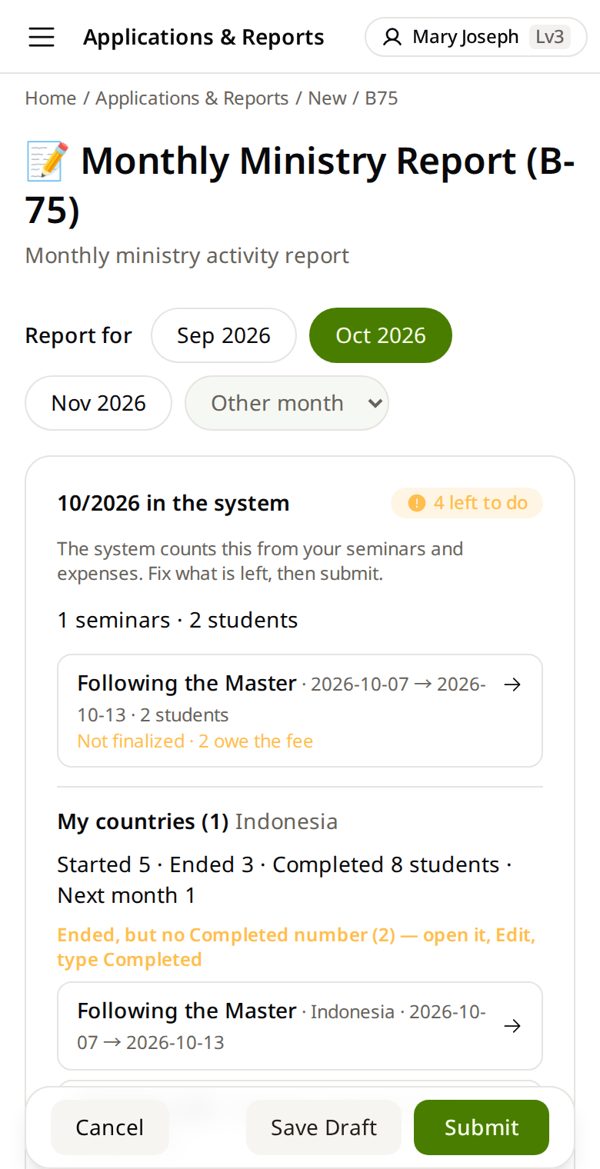
2. Check the month
Last month is already selected. The box counts your countries: started, ended — and seminars still without Completed. Tap one to fix it.
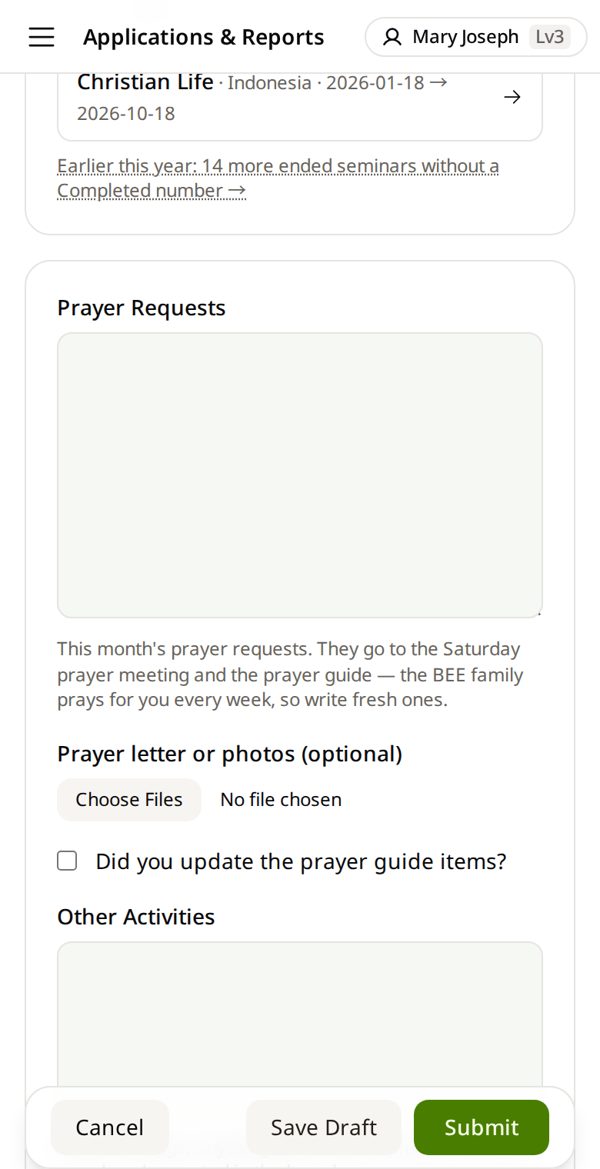
3. Write Prayer Requests → Submit
Like E-75: by person or place, praise and prayer. Only HQ and branch leaders read it.
Yearly indigenization analysis — Once a year, for each of your countries — your branch director confirms it
1. Open Indigenization
Home → Ministry tile → ☰ (computer: left menu) → Indigenization.
2. Tap your country
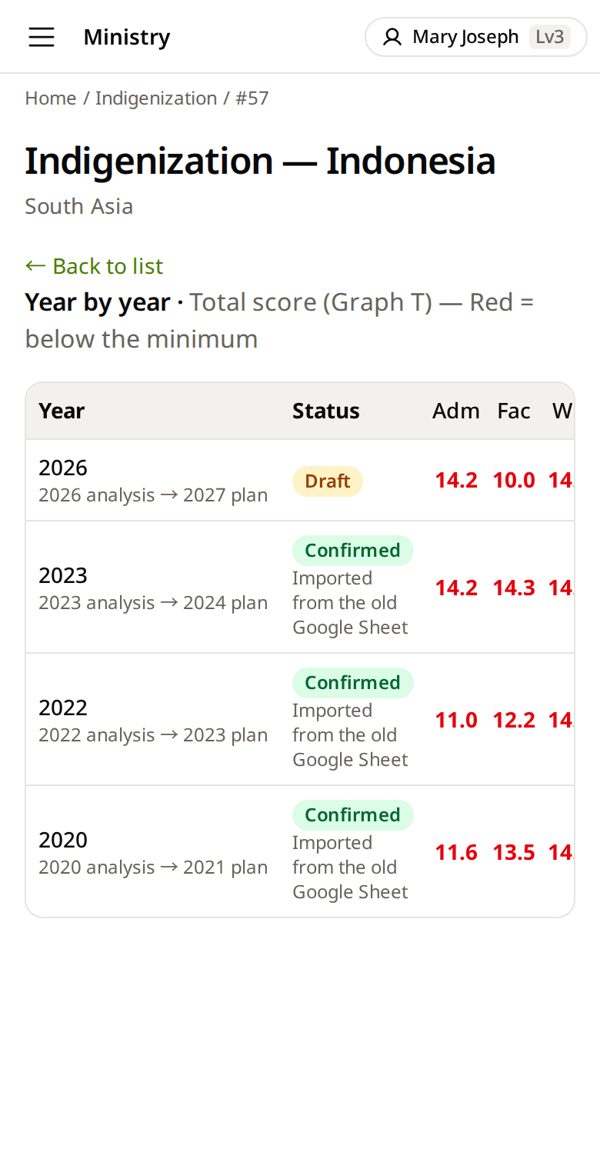
Red numbers = below the minimum in that area.
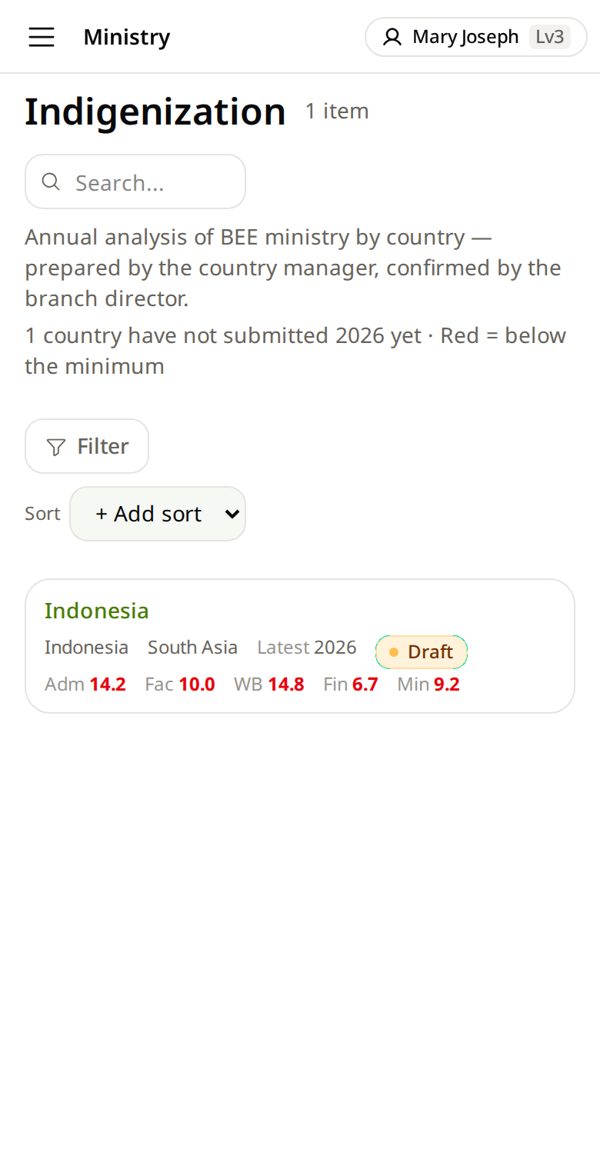
3. Start 2026 analysis — or Open on this year's row
Start begins from last year's answers — change only what is different. Someone already started this year? Open it and continue.
4. Fill each tab
Cover · Administration · Facilitator · Workbook · Finance · Ministry. It saves by itself. The number on a tab is its score.
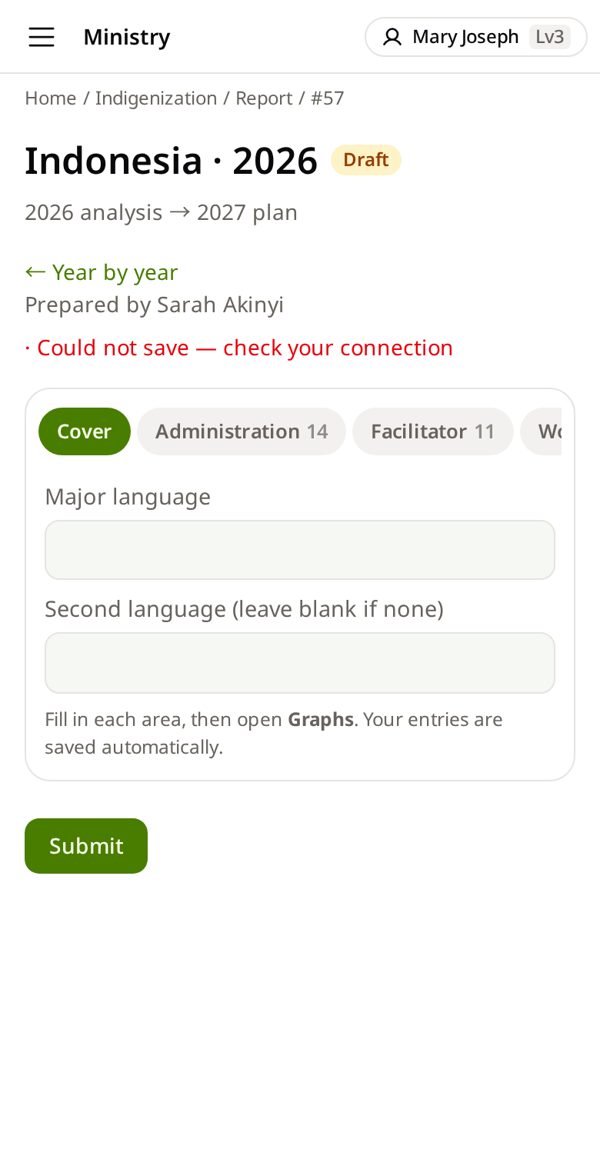
5. Tap Submit
It goes to your branch director, who confirms it.
Returned? Read the note, fix it and submit again.
Indonesia · 2026 ✳
DraftSavedSubmit
📋From E-75 to Ministry Manager
- One E-75 row → one seminar in Ministries
- Country · city → Country · Venue (India: + State)
- Start · end → Start Date · End Date — pick from the calendar
- Students → Enrolled (started) · Completed (finished)
- Facilitators → add each one · not in the system → Remarks
- “*” online → Seminar Type Online
- Next month's plan → add it when the dates are known
- Prayer requests → B-75
- Do not upload your E-75 file — type each seminar. Report & Grade Files is for grade sheets.
📄Many seminars that look alike
Open one you already added → Copy → change what is different (dates, place, numbers) → Save.
🗓When to do what
- A seminar starts → Add a seminar
- It ends → Close a finished seminar
- End of month → Month-end check · Start of the next month → B-75
- Once a year → Yearly indigenization analysis
👥Teach a facilitator
Sit beside them. On their phone they add one of their own seminars — you point, they type. Then one more alone.
🌏Several countries
You see the countries you look after. Choose the right Country on each seminar.
📋Two groups, same course
Two groups of the same course in one city are two seminars.
📨Where my B-75 goes
One B-75 per person each month — it covers all your countries. It goes to your branch director, then HQ. Yearly numbers count a seminar in the year of its End Date.
🔎Is it already there?
Before you add: Search the course or place, or Filter by country and year. Same course + same place + same start date = it is already there — open it instead.
📅Planned, postponed, cancelled
- Planned: add it now with its dates. It shows as New until it starts — B-75 counts it as next month's plan.
- Postponed: Edit → change the dates.
- Cancelled: open the seminar → ⋯ → Mark as cancelled. Do not delete it — it stays in the list and is left out of the numbers.
✍️Boxes you can leave empty
Boxes with * must be filled. Group, Max Capacity, Open for Enrollment and Fee settings are for classes run in Ministry Manager — for your report you can leave them.
🗓Dates
Tap the date box and pick from the calendar — your phone shows the day and month in its own order. Still going? Leave End Date empty. After Save, check the dates on the seminar card.
🙋Who to ask
Ask your branch director (or the missionary who helps you) first. They pass it to HQ when needed. Tell them the seminar number (#…) and the names.
💻Using a computer?
- Button and box names are the same as in the pictures.
- The menu is always open on the left — where the guide says ☰, use the left menu.
- Lists show as wide tables. Keep this guide open on your phone beside you.
I can't find the facilitator
They are not in the system yet. Add them: “A new facilitator”. In a hurry? Write the name in Remarks and add them later.
The same seminar is there twice
Do not delete it. Tell your branch director which one is right — they pass it to HQ, and HQ fixes it.
My country is not in the list
You can choose only the countries you look after. Ask your branch director — they ask HQ to add yours.
B-75 says this month is already sent
One per month. Open the one you sent (Applications → What I sent) and edit it.
The seminar is in the wrong year
Yearly numbers use the End Date. Check it.
My State or place is not in the list
Place: tap + next to Venue to add it. State: leave it empty and tell your branch director.
The wrong facilitator is on the seminar
Open the seminar → Edit → Facilitator Assignment Info: pick the right name in that row, or tap ✕ to remove one → Save.
I put the seminar in the wrong country
Open the seminar → Edit → Country → the right one. Venue, Group and State empty out — choose them again → Save.