👋 Welcome to Ministry Manager
With my Gmail — I have a Gmail — new to BEE or not
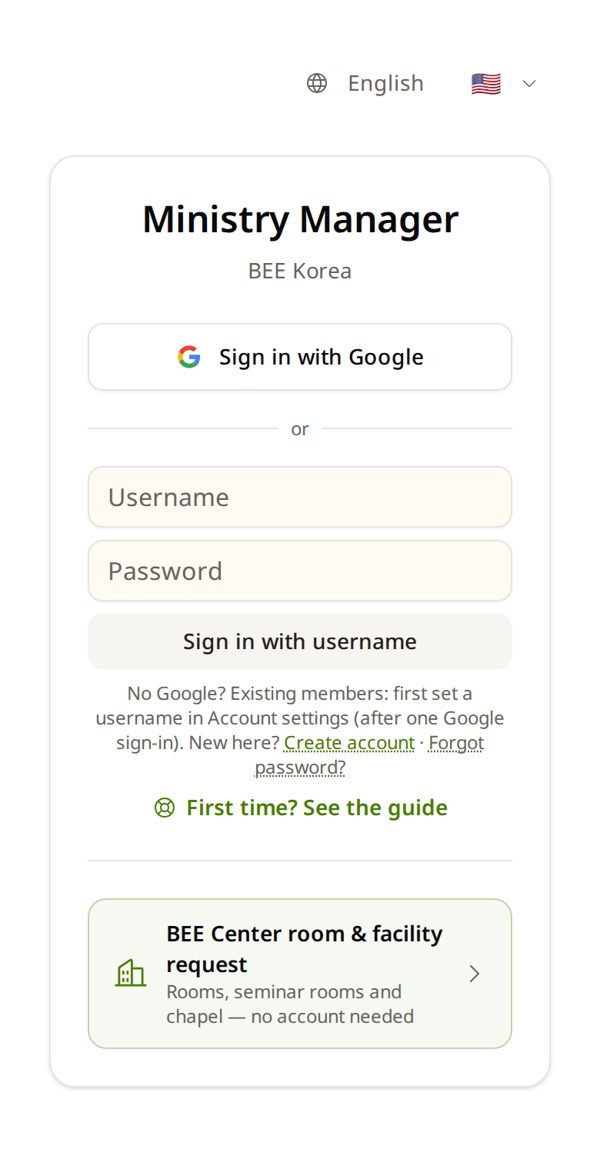
1. Tap Sign in with Google
Open ministry.beekorea.org in Chrome (Android) or Safari (iPhone).
2. Pick the Gmail BEE knows
Many Gmails? Pick the one BEE has. Not sure? Pick one — the next screen helps.
Choose an account ✳
to continue to beekorea.org
Grace M.grace.m@gmail.comUse another account3. See “Welcome 👋”? New to BEE → I'm new
Went straight to the home screen? BEE knows you — skip the next step.
⚠️ BEE registered you before, maybe with another email? Do not tap “I'm new”. Use the path “BEE registered me before”.
Welcome 👋 ✳
I'm newRegister as a new memberI'm already registeredFind and link my account4. Fill in each screen → Next
Name as on your ID card · birth date · Country of Residence = where you live now. Last screen: check, then tap Register.
The BEE leader of that country approves your class requests.
Where do you live? ✳
Country of Residence *Search...Home CountryNext5. You're in! 🎉 Now tap your name
The big tiles are the doors — you see only the doors you need. Your name opens your account.
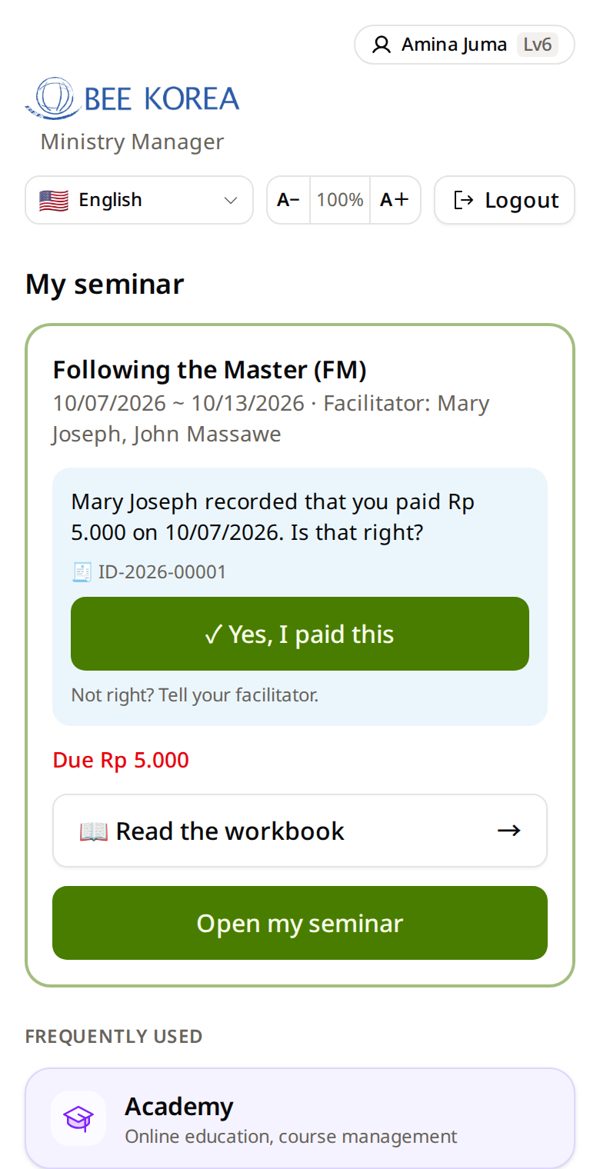
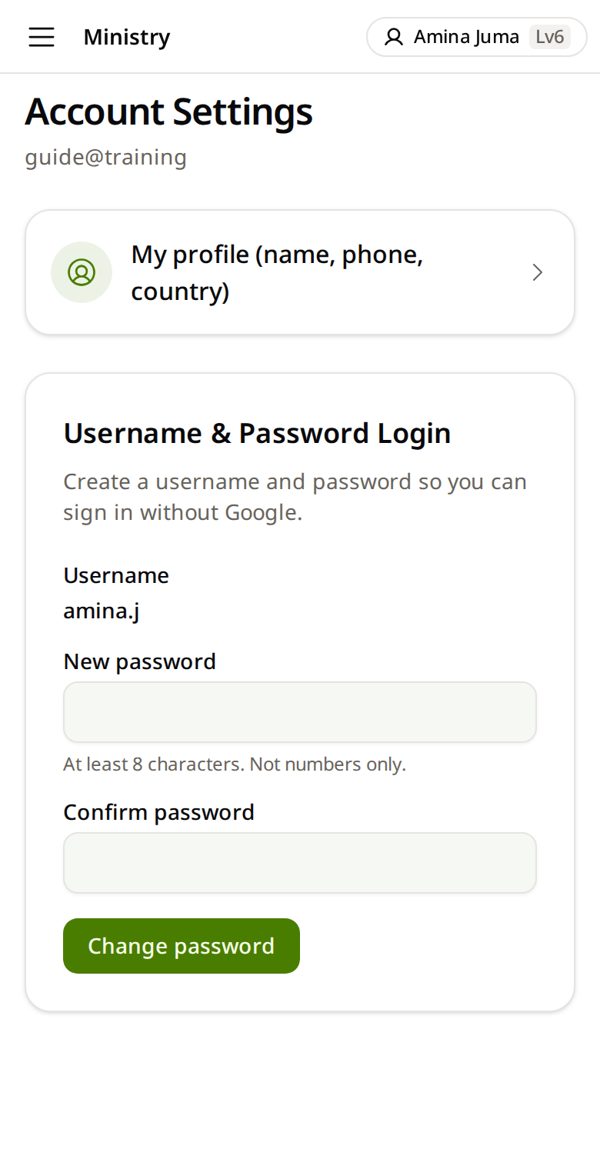
6. Tap My profile (name, phone, country)
Here you can also make or change your password for days without Google.
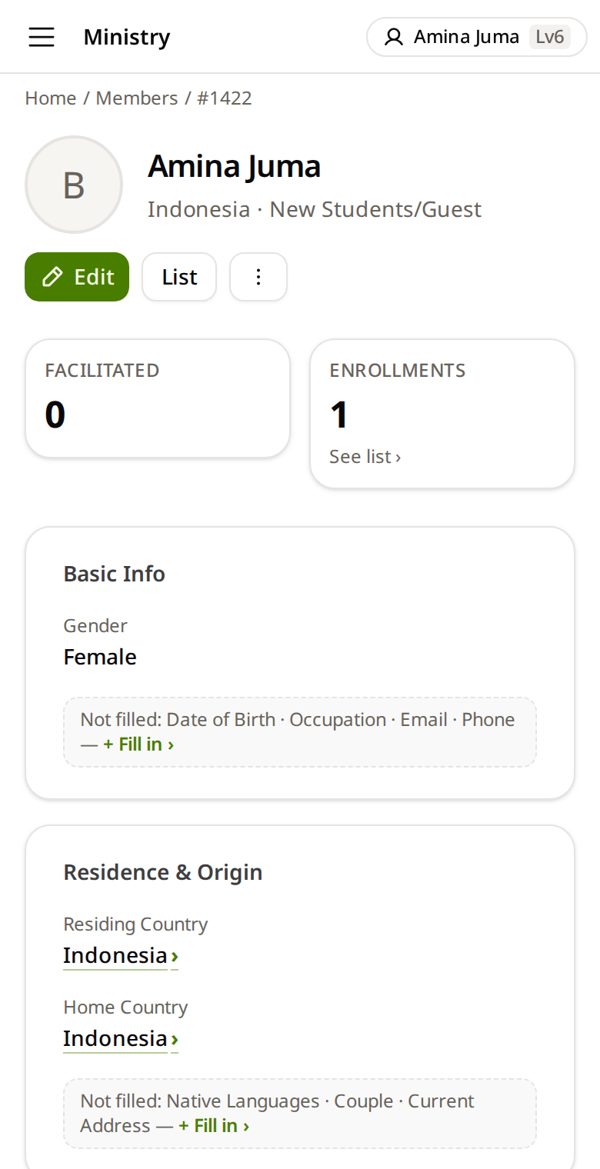
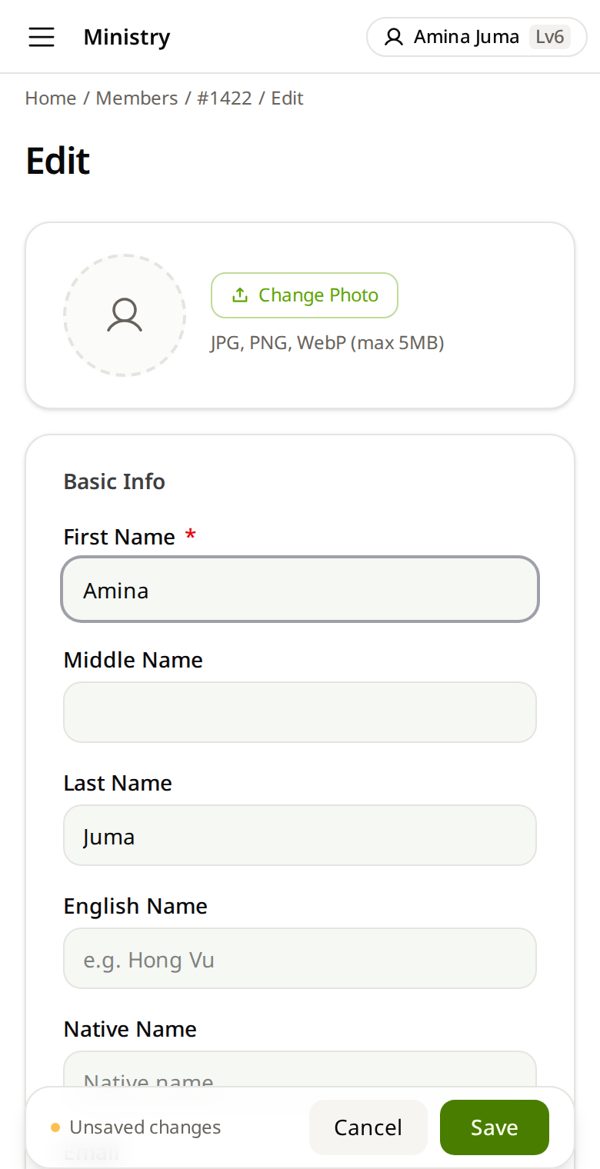
7. Tap Edit
Check your name and phone. Your diploma prints the name written here.
8. Fix your name → Save
Name in English letters, as on your ID card. Phone and country are further down.
BEE registered me before — BEE has my name, maybe with an old email — I want to use my Gmail now
1. Tap Sign in with Google
Pick the Gmail you use now.
2. Tap I'm already registered
Went straight to the home screen? BEE already knows this Gmail — you are done.
Welcome 👋 ✳
I'm newRegister as a new memberI'm already registeredFind and link my account3. Type your first name → Search
Only your first name, in English letters.
Do you have an existing account? ✳
An admin may have pre-registered your info. Search by name.
RaviFirst NameSearch4. Find your name → This is me
Check the country and the year you joined. Not in the list? Tap Not in results — Register new.
2 found: ✳
Ravi T.India · Joined 2019Ravi S.India · Joined 2023This is me5. Check → Confirm and send request
Birth date? Type it if you know it. It shows BEE this is really you.
Confirm this is you ✳
Ravi T.NameIndiaCountry of Residenceravi.t@gmail.comYour Google accountConfirm and send request6. Wait for the email, then sign in again
BEE checks and links your Gmail — usually within a few working hours. Then Sign in with Google again.
Request has been submitted ✳
1. The admin will review your request…2. If correct, the admin will change this member's login email…3. Once changed, you will receive a confirmation email…7. You're in! 🎉 Now tap your name
The big tiles are the doors — you see only the doors you need. Your name opens your account.
8. Tap My profile (name, phone, country)
Here you can also make or change your password for days without Google.
9. Tap Edit
Check your name and phone. Your diploma prints the name written here.
10. Fix your name → Save
Name in English letters, as on your ID card. Phone and country are further down.
With a username — My facilitator made a username and password for me — no email needed
1. Type your username and password
The ones your facilitator wrote down for you. Not your Gmail.
2. Tap Sign in with username
“Incorrect username or password”? Ask your facilitator for a new password.
3. You're in! 🎉 Now tap your name
The big tiles are the doors — you see only the doors you need. Your name opens your account.
4. Tap My profile (name, phone, country)
Here you can also make or change your password for days without Google.
5. Tap Edit
Check your name and phone. Your diploma prints the name written here.
6. Fix your name → Save
Name in English letters, as on your ID card. Phone and country are further down.
I'm new — no Gmail — I have another email (Yahoo, Outlook…) and will make my own account
1. Tap Create account
It is the small link under the boxes.
2. Fill in the four boxes
Username (like neema.j) · password, twice · your email. Write the username and password on paper.
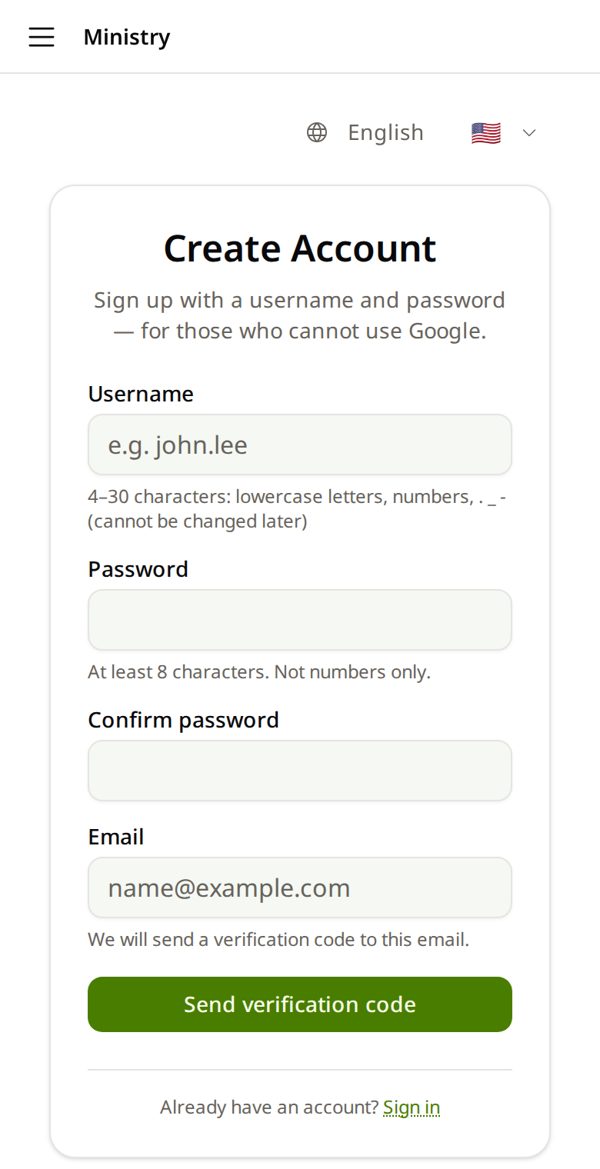
3. Tap Send verification code
We email you a 6-digit code. Open your email app, then come back here.
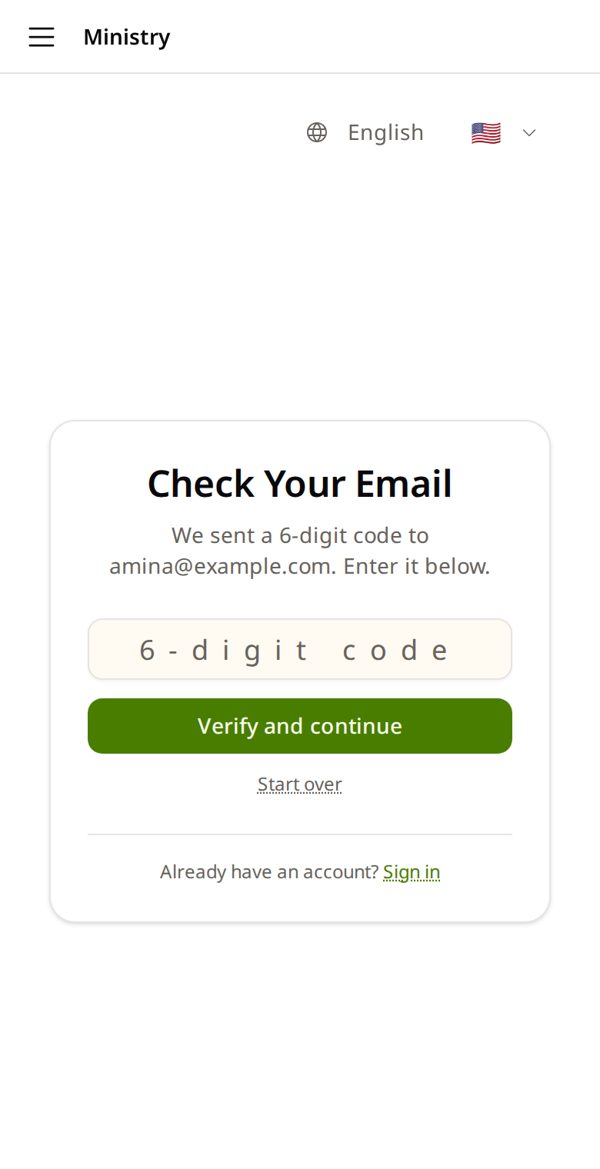
4. Type the code → Verify and continue
Open your email to find it. No email? Look in Spam, or tap Start over.
5. Tap I'm new
Your account is made. Now tell BEE who you are.
Welcome 👋 ✳
I'm newRegister as a new memberI'm already registeredFind and link my account6. Fill in each screen → Next
Name as on your ID card · birth date · Country of Residence = where you live now. Last screen: check, then tap Register.
The BEE leader of that country approves your class requests.
Where do you live? ✳
Country of Residence *Search...Home CountryNext7. You're in! 🎉 Now tap your name
The big tiles are the doors — you see only the doors you need. Your name opens your account.
8. Tap My profile (name, phone, country)
Here you can also make or change your password for days without Google.
9. Tap Edit
Check your name and phone. Your diploma prints the name written here.
10. Fix your name → Save
Name in English letters, as on your ID card. Phone and country are further down.
🌐Change the language
Tap the language box (English) at the top → pick your language. This phone remembers it.
📲Put it on my home screen
- Android: ⋮ → Install app
- iPhone: Share ⬆ → Add to Home Screen
🧭Get back when lost
☰ (computer: left menu) → ← Home. On iPhone apps there is no back button — use ☰.
🔐Sign in without Google
Sign in with Google once → tap your name at the top → Username & Password Login → make one.
🔠Bigger text
On the home screen, top: A− 100% A+. Tap A+ until it is easy to read. It is saved in your account.
🔑Change my password
A password from your facilitator? Make your own: tap your name at the top → New password twice → Change password.
🪪Your name
No ID card? Write your full name the way it should be printed on your certificate.
💻Using a computer?
- Button and box names are the same as in the pictures.
- The menu is always open on the left — where the guide says ☰, use the left menu.
- Lists show as wide tables. Keep this guide open on your phone beside you.
“Incorrect username or password.”
- Typed your Gmail? Use Sign in with Google instead.
- Username from your facilitator? Ask them for a New password.
“Welcome 👋” — but I already have an account
You used a different Gmail. Tap Sign in with a different Google account. Not sure? I'm already registered → find your account.
I forgot my password
- Gmail: there is no BEE password — use Sign in with Google. Forgot the Gmail password itself? Google's screen has “Forgot password?”.
- Account you made with your email: Forgot password? on the sign-in page.
- Username your facilitator made: ask them for a new password.
New phone
Sign in the same way. Everything is in your account, not on the phone.
Google says “This browser or app may not be secure”
You opened the link inside another app (Facebook, Instagram…). Open it in Chrome or Safari, then sign in again.
I have no email at all
Ask your facilitator to make a username and password for you. Then use “With a username”.
I made two accounts by mistake
Tell your BEE leader. Do not make another one — BEE joins them.
I forgot my Google password
BEE does not have your Google password. On the Google sign-in screen, tap “Forgot password?” and follow Google.
I see only a few tiles
New accounts start as a guest. Your facilitator or coordinator gives you the right level — tell them your name.